


Why Add a WhatsApp Live Chat Widget to a WordPress Website
"As of March 2025, WhatsApp had approximately 3 billion monthly active users (MAUs)." - Source
Adding a WhatsApp live chat widget to WordPress connects your site to a channel customers already use daily. Compared to traditional web chat tools, a WhatsApp chat plugin for WordPress lets visitors continue the conversation on mobile, keep full history, and return anytime - driving faster replies, more qualified leads, and higher conversion rates.
The business case: faster replies, higher conversions, trusted messaging
How WhatsApp reduces friction vs. forms and email
One-tap conversations beat long forms and slow inboxes. A WhatsApp chat button on your website removes steps (no logins, no captchas, no waiting), captures intent in the moment, and pre-fills helpful context (page URL, product, campaign UTM).
Persistent, mobile-first threads. Unlike live chat sessions that expire, WhatsApp threads live in the user’s app - so follow-ups, reminders, and re-engagement are seamless.
Higher response likelihood. Push notifications and a familiar interface increase open rates and reply speed compared to email, improving lead-to-deal velocity.
Social proof and user expectations for instant support
Visitors expect instant answers on product fit, pricing, delivery, and booking. A visible WhatsApp website chat button signals availability and builds trust.
Shared media and voice notes create a human, secure feel that reduces purchase anxiety and cart abandonment - especially for D2C and service businesses.
What you’ll learn in this guide
Plugin-based setup (fastest)
The quickest way to add a WhatsApp chat plugin to WordPress with no code, including positioning, colors, and greeting message.
Manual wa.me link/button (lightweight, code-based)
How to add a minimal, fast WhatsApp chat button using wa.me links or custom HTML/CSS - ideal for performance-focused sites.
API-grade workflow with automation (Trikon)
When to move from the WhatsApp Business App to the official WhatsApp API, and how Trikon enables shared inboxes, automation, chatbots, broadcasts, and SLA-backed support.
Customization, performance, analytics, and compliance
Best practices for button placement (mobile vs. desktop), load impact, consent/GDPR, UTM tracking, and Google Analytics events.
Best practices and common pitfalls to avoid
Prevent spam, set business hours and expectations, craft high-converting CTAs, and avoid dark patterns that hurt UX or SEO.
This section sets the “why.” Next, we’ll show exactly how to implement your WordPress WhatsApp integration - starting with the fastest plugin route, then a lightweight code method, and finally an automation-ready Trikon setup.
Three Ways to Add WhatsApp Chat to WordPress (And How to Choose)
There are three reliable paths to add a WhatsApp live chat widget to WordPress: a no-code plugin, a lightweight manual link/button, or the WhatsApp Business API through Trikon for teams and scale. Pick based on speed-to-value, performance preferences, and automation needs.
"On WordPress.com, installing third‑party plugins requires the Business plan or higher." - Source
Option A - WhatsApp chat plugin for WordPress
Fastest time-to-value, no code, visual controls
Ideal if you want a floating WhatsApp website chat button live in minutes, with settings for position, color, and greeting text
Common features: page/device targeting, triggers (time on page/scroll), multiple agent profiles (in some plugins), and simple analytics hooks
Best for beginners or teams that want a quick, low-maintenance WordPress WhatsApp integration without touching code
Option B - Manual integration with wa.me link or custom button
Lightweight, total control; add to menus, blocks, or as a floating button
Perfect for performance-first or developer-led sites that prefer no plugin overhead
Create a custom link to wa.me with prefilled messages and add it to navigation, CTAs, or a sticky/floating button via theme or block editor
Best for sites needing a minimal WhatsApp chat button for WordPress with full control over markup and styling
Option C - WhatsApp Business API via Trikon
Shared inbox, SLAs, automation, broadcasts, and commerce; suited for teams and scale
Trikon enables a centralized support inbox with agent assignment, SLA tracking, AI/keyword chatbots, broadcasts, segmentation, drip campaigns, abandoned cart recovery, bookings/operations, and a WhatsApp Storefront
Ideal for multi-agent support teams, D2C/eCommerce brands, and agencies that need automation, analytics, and compliant scaling beyond a basic WhatsApp chat plugin for WordPress
Comparison: Plugin vs Manual vs API (Trikon)
Method | Setup time | Skills required | Pros | Cons | Best for | Scalability/Automation |
|---|---|---|---|---|---|---|
Plugin | 5–10 minutes | None; WordPress admin | Fastest setup; visual controls; display rules; minimal maintenance | Adds plugin overhead; limited advanced automation; feature caps vs API | Solo operators, SMBs, landing pages, quick MVP | Low–Medium; basic triggers and events |
Manual (wa.me) | 5–20 minutes | Basic HTML/CSS; theme/block editing | Lightweight; no plugin bloat; total UI control; performance-friendly | No UI panel; fewer features (no multi-agent, no schedules); manual tracking | Developers, performance-focused sites, custom themes | Low; manual workflows |
API (Trikon) | Same day to a few days (Meta verification) | Business verification; platform onboarding | Shared inbox; SLAs; AI/keyword chatbots; broadcasts; segmentation; WooCommerce/cart recovery; storefront; analytics; compliance | Cost vs free plugins; number approval; learning curve for automation | Teams, eCommerce at scale, support desks, agencies | High; enterprise-grade automation and reporting |
How to pick the right path (decision checklist)
Team size and coverage: Solo or small team (Plugin/Manual) vs multi-agent with SLAs (API/Trikon)
Hours of operation: Simple widget with business hours (Plugin) vs 24×7 automation and routing (API/Trikon)
Automation needs: None/minimal (Manual/Plugin) vs chatbots, broadcasts, retargeting, and cart recovery (API/Trikon)
WooCommerce usage: Basic chat button (Plugin/Manual) vs integrated campaigns, product catalogs, and orders (API/Trikon)
Analytics and CRM: Basic event tracking (Plugin) vs centralized reporting, segmentation, and lifecycle workflows (API/Trikon)
Compliance and scale: Hobby or small site (Plugin/Manual) vs verified, compliant, and scalable operations (API/Trikon)
Method 1: Add a WhatsApp Chat Plugin to WordPress (Step-by-Step)
Add a WhatsApp live chat widget to WordPress in minutes using a reputable WhatsApp chat plugin for WordPress. This no-code method is ideal for fast, stable deployment and clean visual controls.
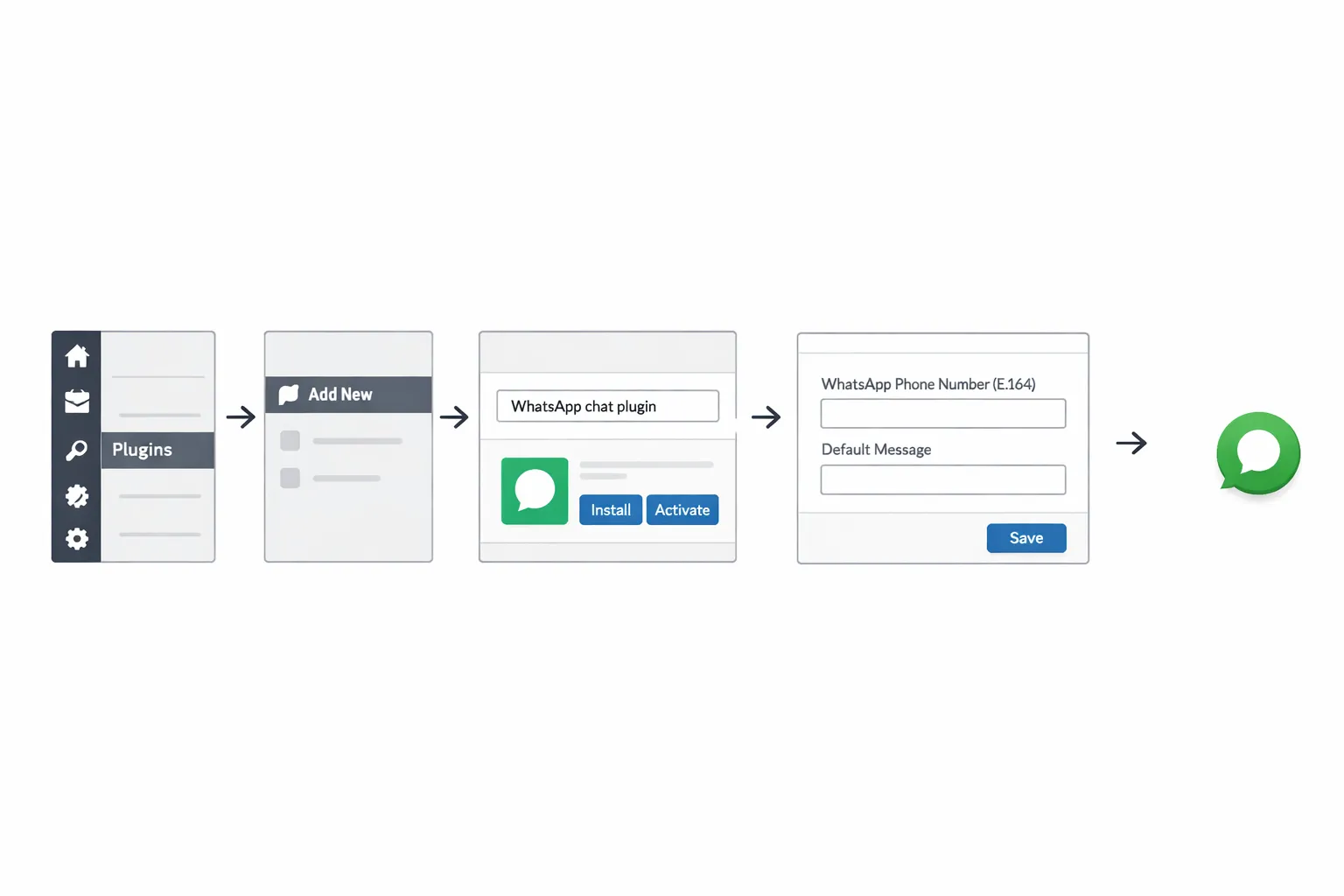
Step 1 - Install and activate a reputable plugin
Go to WordPress Dashboard → Plugins → Add New.
Search for “WhatsApp chat plugin” and review options such as:
Click to Chat (HoliThemes)
Social Chat (QuadLayers)
Elfsight WhatsApp Chat
Verify before installing:
Recent updates (active maintenance)
Rating and number of reviews
Compatibility with your WordPress/PHP version
Support responsiveness and documentation
Click Install → Activate.
Tip: Favor lightweight plugins with clear changelogs to minimize page weight and ensure a smooth WordPress WhatsApp integration.
Step 2 - Connect your WhatsApp number and pre‑filled message
Phone number format:
Enter your full international number (E.164), including country code. Example:
E.164: +1 415 555 2671
If the plugin asks for digits-only (for wa.me), remove symbols: 14155552671
Set a helpful pre‑filled message:
Many plugins support dynamic variables:
Example template: “Hi! I’m looking at {CURRENT_TITLE} - {CURRENT_URL}. Can you help?”
If variables aren’t supported, use a concise default:
“Hi! I have a quick question about your products.”
For teams, add agent names/roles (Sales, Support) if your plugin supports multiple contacts.
Why it matters: A clear, contextual message shortens back-and-forth and boosts conversion for your WhatsApp website chat.
Step 3 - Position, design, and display rules
Placement and style:
Floating vs inline: Floating button (bottom-right) is standard for visibility; inline buttons work well on key pages (pricing, product pages, contact).
Customize colors, size, corners (rounded/square) to match brand guidelines and ensure 4.5:1 contrast for accessibility.
Entrance triggers: Choose when the widget appears - on load, after time delay, scroll depth (e.g., 30–50%), or exit intent.
Display targeting:
Show/hide by page types: entire site, specific posts/pages, categories/taxonomies.
WooCommerce: prioritize showing on product and cart pages; consider hiding on checkout to reduce distraction.
Devices: mobile-only, desktop-only, or both. Many sites show the widget on mobile and a smaller icon on desktop.
UX and performance:
Add an aria-label (e.g., “WhatsApp live chat”) for screen readers.
Defer non-critical scripts and avoid large images in widget popups to protect Core Web Vitals.
Step 4 - Test on mobile and desktop
Mobile:
Confirm deep link opens the WhatsApp app on iOS (Safari) and Android (Chrome).
Validate that the pre-filled message and your full international number render correctly.
Desktop:
Verify WhatsApp Web opens (or desktop app if installed) in Chrome, Firefox, Edge, and Safari.
Check behavior in private/incognito windows and with ad/script blockers.
Final checks:
Confirm display rules, triggers, and visibility across templates (home, product, blog).
If using analytics, click the button and ensure events are recorded.
Pros and cons of the plugin method
Pros
Fastest setup and no code required
Visual controls for design, triggers, and display targeting
Stable updates and support from established developers
Cons
Adds extra script/CSS weight compared to a manual link
Advanced features (multi-agent, schedules, GA events) may be limited or require paid tiers
What’s next: Prefer a featherweight approach or complete control over markup and performance? Continue to Method 2 for a manual wa.me link/button setup.
Method 2: Manually Add a WhatsApp Chat Button with wa.me
The manual method gives you total control and near-zero bloat by using a direct wa.me link and a small amount of code.
Option A - Add a WhatsApp link to menus, buttons, or blocks
Use the official format:
https://wa.me/?text=
Example with full international number and encoded message:
Tip: Replace with digits only (country code + number). Always URL‑encode the message.
Option B - Create a floating WhatsApp button (HTML/CSS/JS)
A lightweight button fixed to the bottom corner that adapts to mobile/desktop.
Paste this into a Code Snippet plugin, your child theme footer, or an HTML block site-wide.
<!-- Floating WhatsApp Button (minimal, accessible, GA4-enabled) -->
<style> .wa-float { position: fixed; right: 20px; bottom: 20px; z-index: 9999; } .wa-btn { display: inline-flex; align-items: center; justify-content: center; width: 56px; height: 56px; border-radius: 50%; background: #25D366; /* WhatsApp green with accessible contrast on white */ color: #fff; box-shadow: 0 8px 16px rgba(0,0,0,.15); text-decoration: none; transition: transform .2s ease, box-shadow .2s ease; } .wa-btn:focus-visible { outline: 3px solid #0b5; outline-offset: 4px; } .wa-btn:hover { transform: translateY(-2px); box-shadow: 0 10px 20px rgba(0,0,0,.18); } .wa-ico { width: 26px; height: 26px; display: block; background: center/contain no-repeat url('data:image/svg+xml;utf8,<svg xmlns="http://www.w3.org/2000/svg" fill=\"white\" viewBox=\"0 0 32 32\"><path d=\"M19.11 17.35c-.27-.14-1.57-.77-1.81-.86-.24-.09-.42-.14-.6.14-.18.27-.69.86-.85 1.03-.16.18-.31.2-.58.07-.27-.14-1.14-.42-2.17-1.34-.8-.71-1.34-1.58-1.5-1.85-.16-.27-.02-.41.12-.55.12-.12.27-.31.4-.47.13-.16.18-.27.27-.45.09-.18.05-.34-.02-.48-.07-.14-.6-1.45-.82-1.98-.21-.5-.42-.43-.6-.44l-.51-.01c-.18 0-.48.07-.73.34-.25.27-.96.94-.96 2.3s.98 2.67 1.12 2.85c.14.18 1.93 2.94 4.68 4.12.65.28 1.16.45 1.56.58.65.2 1.25.17 1.72.1.53-.08 1.57-.64 1.79-1.26.22-.62.22-1.16.15-1.27-.07-.11-.24-.18-.51-.32z\"/></svg>'); } /* Small screen position tweak */ @media (max-width: 480px) { .wa-float { right: 14px; bottom: 14px; } } /* Optional tooltip */ .wa-tooltip { position: absolute; right: 70px; bottom: 8px; background: #111; color: #fff; padding: 8px 10px; border-radius: 6px; font: 500 13px/1.2 system-ui, -apple-system, Segoe UI, Roboto, Ubuntu, Cantarell, Noto Sans, Arial, sans-serif; white-space: nowrap; box-shadow: 0 6px 14px rgba(0,0,0,.2); opacity: 0; transform: translateX(6px); transition: .2s ease; pointer-events: none; } .wa-float:hover .wa-tooltip, .wa-float:focus-within .wa-tooltip { opacity: 1; transform: translateX(0); }
</style> <div class="wa-float" role="complementary" aria-label="WhatsApp live chat"> <a id="waLink" class="wa-btn" href="#" target="_blank" rel="noopener" aria-label="Chat on WhatsApp" title="Chat on WhatsApp"> <span class="wa-ico" aria-hidden="true"></span> </a> <span class="wa-tooltip" role="tooltip">Chat on WhatsApp</span>
</div> <script> (function() { var number = '14155552671'; // digits only, E.164 without symbols var title = document.title || ''; var url = window.location.href; var msg = 'Hi! I\\'m looking at ' + title + ' - ' + url + '. Can you help?'; var encoded = encodeURIComponent(msg); var waUrl = 'https://wa.me/' + number + '?text=' + encoded; var link = document.getElementById('waLink'); // GA4 event helper (fires on click) function trackGA4() { if (window.gtag) { gtag('event', 'whatsapp_click', { page_location: url, page_title: title }); } } link.addEventListener('click', function() { trackGA4(); // open in new tab (href already set), ensure latest URL on SPA sites this.href = waUrl; }); // For SPAs or late mutations, set href initially too link.href = waUrl; })();
</script>
Notes:
Replace number with your own full international number (digits only).
You can change button position (left/bottom) and size (56px) in CSS.
On mobile devices, the link opens the WhatsApp app; on desktop, it opens WhatsApp Web or the desktop app if installed.
Option C - Add click tracking and UTM parameters
Add UTMs to attribute campaign/source in WhatsApp link text:
Example message (human-readable): “Hi, I’m viewing {{page_title}}. Found you via Google Ads (utm_source=google&utm_medium=cpc&utm_campaign=brand).”
GA4 event example (already in the snippet):
Event name: whatsapp_click
Parameters: page_location, page_title
For deeper analytics, also pass a short session ID in the message, or capture “last-click source” server-side and append to the text.
Pros and cons of the manual method
Pros
Minimal bloat, no plugin dependency
Full control over markup, styling, triggers, and performance
Cons
No dashboard UI or built-in targeting
More upkeep as requirements grow (multi-agent routing, hours, analytics, A/B testing)
When to choose this: You prioritize performance and control, are comfortable editing theme or code snippets, and only need a reliable WhatsApp chat button for WordPress without plugin overhead.
Method 3: WhatsApp Business API for Teams and Automation (via Trikon)
"The WhatsApp Business Platform is designed for medium to large businesses seeking to communicate with customers at scale." - Source
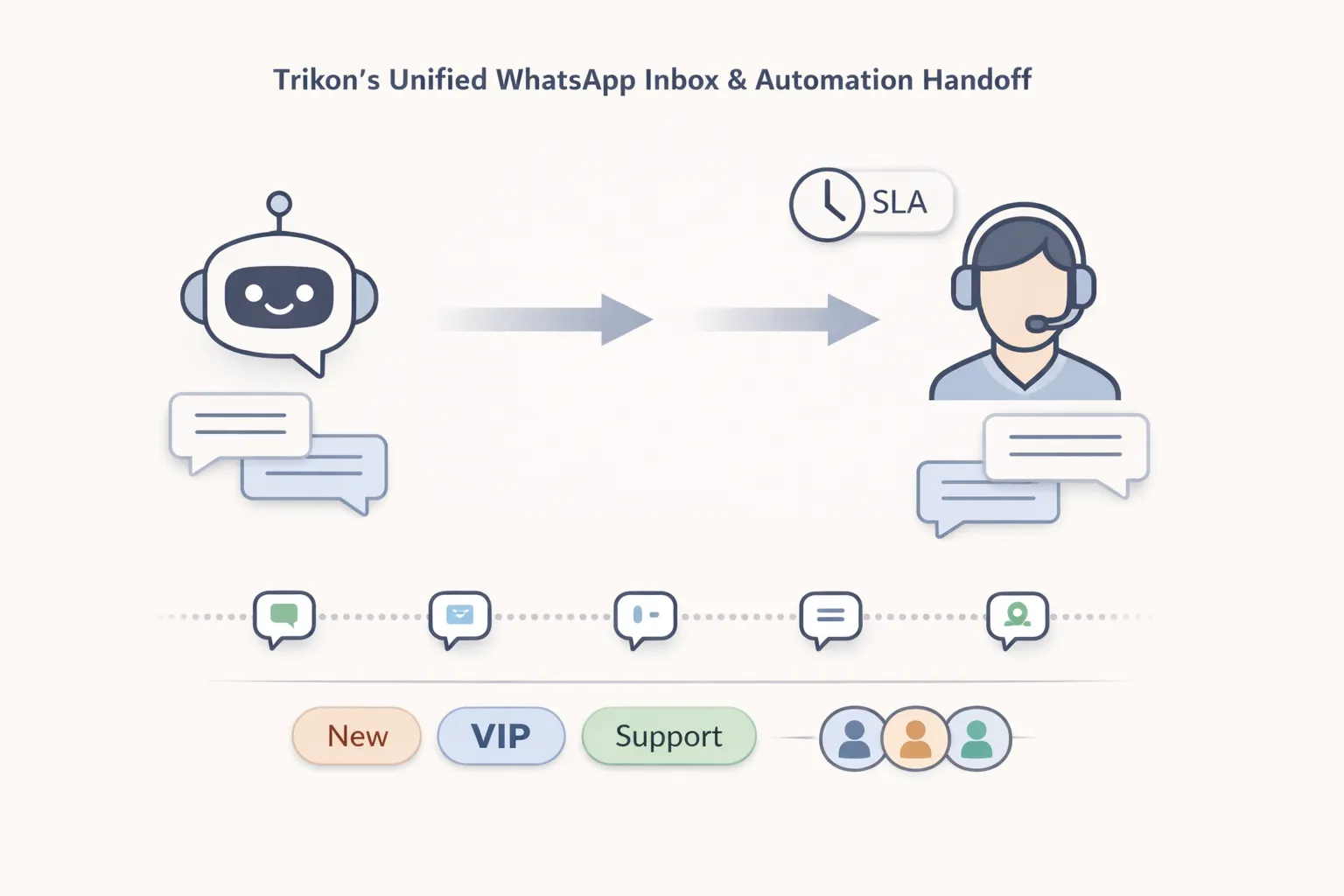
When the API is the right choice
Multi‑agent support with SLAs, shared inbox, and conversation history
Centralize WhatsApp website chat in a shared inbox, assign owners, prevent collisions, and track SLAs with full history.
Automation for FAQs, drip campaigns, and abandoned cart recovery
Combine AI/keyword chatbots for 24×7 FAQs with segment-based broadcasts, drips, and cart/order re‑engagement to lift conversions.
Commerce flows: product catalogs, carts, orders, and payments in chat
Offer in‑chat product browsing, carts, orders, and payments. Sync with WooCommerce/Shopify to keep inventory and orders aligned.
Quick start with Trikon (official WhatsApp Business API partner)
Create a Trikon account and connect your WhatsApp Business number
Verify business and number as required by Meta
Configure Support Inbox, business hours, and routing (teams, skills, SLAs)
Enable automation (keyword/AI chatbots) and broadcasts (opt‑in compliant templates)
Add Trikon’s script or WordPress plugin to render the WhatsApp live chat widget on WordPress
Test end‑to‑end (mobile + desktop, bot→agent handoff, analytics/events)
How it scales with your stack
Segment audiences, run drip and retargeting flows tied to behavior (product views, cart status, last purchase).
Bookings and operations in chat; payments and confirmations; ticketing or appointment workflows end‑to‑end.
Storefront sync for WooCommerce/Shopify: catalogs, order alerts, shipping updates, and abandoned cart recovery.
Agency/white‑label workflows: multi‑brand workspaces, roles/permissions, templated rollouts, and centralized reporting.
WhatsApp Business App vs WhatsApp Business API (via Trikon)
Seats/Agents
Shared inbox & SLAs
Automation/Chatbots
Broadcasts & segmentation
Commerce (catalog/cart/orders)
Analytics & events
Compliance & reliability
Best for
WhatsApp Business App
Single user or very small teams (limited device sharing)
No true shared inbox; manual handoff; no SLA timers
Basic quick replies only; no advanced bots
Limited broadcasts; basic labels; manual segmentation
Catalog only; no full cart/order automation
Minimal in‑app stats
Consumer app limits; not built for scale
Solopreneurs, micro‑teams, low volume
WhatsApp Business API (Trikon)
Multi‑agent teams; roles and permissions
Centralized inbox, assignment, collision control, SLA tracking
Keyword/AI chatbots, workflows, drip and retargeting
Opt‑in compliant broadcasts, segments, journeys
Catalogs, carts, orders, payments; WooCommerce/Shopify sync
Event tracking, reports, dashboards, exports
Official API partner, template approvals, scalable infra
Support desks, D2C/eCommerce at scale, agencies, enterprises
When you outgrow a simple WhatsApp chat plugin for WordPress, Trikon’s API‑grade approach delivers a compliant, scalable WordPress WhatsApp integration with automation, campaigns, and revenue-driving commerce - all while keeping a human in the loop where it matters.
Customize Your WhatsApp Website Chat for Higher Conversions
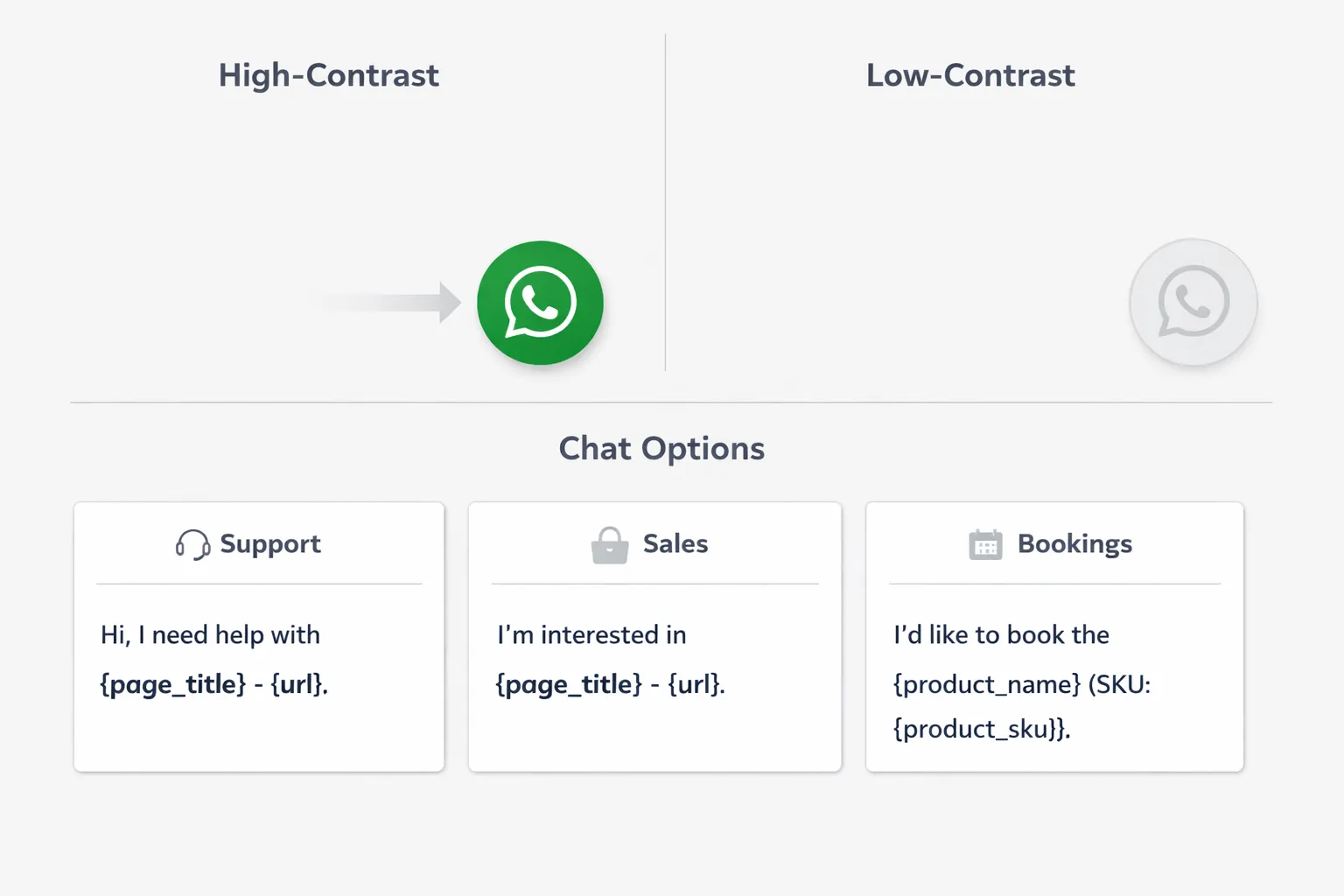
Get the basics right
Position: Bottom‑right is conventional and highly discoverable; bottom‑left can reduce overlap with other widgets.
Size: 48–56px diameter for tap targets; increase to 60–64px on mobile-heavy sites.
Contrast and colors: Ensure at least 4.5:1 contrast ratio. Use an accessible green (#25D366 on light backgrounds) or your brand color with sufficient contrast.
Clear CTA copy:
Support: “Chat with support”
Sales: “Get product advice”
Bookings: “Schedule on WhatsApp”
Smart pre‑filled messages that save time
Always include context:
“Hi! I’m viewing {page_title} - {url}.”
WooCommerce PDPs: add product name/SKU
“Hi! Question about {product_name} (SKU: {sku}) on {url}.”
Keep phrasing friendly and action‑oriented; include one qualifying question:
Support: “Hi! I’m on {page_title} - {url}. My order number is _____. Can you help?”
Sales: “Hi! I’m comparing {product_name}. Do you have it in stock for delivery this week?”
Bookings: “Hi! I’d like to book a {service_name}. Are you available on {preferred_date}?”
Triggers and visibility rules
Triggers: Show after 10–20s time on page, 30–50% scroll depth, or exit intent on key pages.
Visibility: Hide on checkout or gated pages to avoid distraction; show prominently on PDPs, pricing, and contact.
Business hours banner: Indicate response times (e.g., “We reply in 15 min, Mon–Fri 9–6”). Outside hours, set expectations and encourage leaving a message.
Multi‑agent and departments
Structure: Sales, Support, Billing, and Success as needed.
Presentation: Agent avatars, names, and roles build trust; display working hours and expected response times.
Routing: Default to Support; offer Sales or Billing options when relevant. During off-hours, route to a general queue and acknowledge delay.
Optimization tip: Review chat transcripts to refine CTAs and pre‑filled prompts, then A/B test button copy and triggers for incremental lift.
Mobile vs Desktop Behavior and Edge Cases
What happens on mobile
Deep link behavior:
wa.me links open the WhatsApp app via an OS deep link. If the app isn’t installed, users are prompted to install it.
iOS (Safari and Chrome on iOS use WebKit): deep links must be triggered by a direct user tap; avoid auto-opening via scripts. Always use target=_blank and rel=noopener on anchors.
Android (Chrome): wa.me and whatsapp:// links both work; wa.me is more consistent across browsers.
Pre-filled text and encoding:
Always URL-encode your message. Verify characters like “&”, “?” and non‑ASCII are encoded to prevent truncation.
App missing fallback:
Offer a secondary action: “Copy number” (to clipboard) or “Email us,” and display your hours/SLAs so users know what to expect.
What happens on desktop
Web fallback:
If the WhatsApp desktop app is installed and registered as a protocol handler, it may open directly; otherwise, users are taken to web.whatsapp.com with a QR code login.
Encourage users to stay logged in on WhatsApp Web for frictionless return visits; note that private browsing will reset login more often.
Browser nuances:
Safari and privacy-restrictive modes can require more frequent QR scans due to cookie policies.
Corporate networks or firewalls may block whatsapp:// or web.whatsapp.com - show a graceful fallback (e.g., copy number, email, or a contact form link).
Device targeting and multi-number setups
Device targeting:
Consider showing a prominent floating WhatsApp website chat button on mobile and a smaller, low‑profile icon on desktop.
Hide on screens where it would overlap critical UI (e.g., sticky nav, cookie banners).
Multi-number routing:
Region-based: Route users to local numbers (e.g., US Sales, EU Support) via geo/IP, user language, or self-selection in a mini menu.
Line of business: Offer Sales, Support, and Billing as separate buttons, or show context-aware options (e.g., Sales on product pages, Support on order-status pages).
Graceful fallbacks:
If detection indicates the app or web client may fail (e.g., corporate network), display a “Copy number” and a “Contact form” CTA.
Accessibility and UX details
Keyboard and focus:
Use a semantic element for the chat trigger; if using a , ensure it has type="button" to avoid form submits.
Provide a visible focus state (e.g., a 2–3px outline with sufficient contrast) and ensure the button is reachable in a logical tab order.
Labels and descriptions:
Add aria-label="WhatsApp live chat" and, if necessary, aria-describedby pointing to text that explains expected response times.
Motion and animations:
Respect prefers-reduced-motion; disable or reduce entrance animations (slide/bounce) for those users and limit animation to a short, subtle fade.
Color and contrast:
Meet or exceed a 4.5:1 contrast ratio for the button and tooltip text. Avoid low-contrast greens on tinted backgrounds.
Hit target and spacing:
Keep the touch target 48–56px minimum with adequate spacing from other floating elements (e.g., cookie notices, other chat widgets).
By planning for mobile deep links, desktop web fallbacks, region/department routing, and accessible interactions, your WordPress WhatsApp integration will feel seamless and reliable across devices and edge cases.
Performance, Privacy, and Compliance Essentials
"As mobile page load time increases from 1 second to 3 seconds, the probability of a visitor bouncing increases by 32%." - Source
Keep it fast
Lazy‑load plugin assets:
Load the WhatsApp chat plugin after first interaction (scroll/click) or when the browser is idle (requestIdleCallback) to protect Core Web Vitals.
Minimize 3rd‑party scripts:
Avoid stacking multiple chat widgets; use a single chat launcher and consolidate tags via a tag manager where possible.
Lean configuration:
Prefer SVG icons, compress images in any launcher UI, and defer non‑critical animations or fonts.
Respect privacy and consent
GDPR and consent:
If you capture personal data (name, email, order ID) before opening WhatsApp, display a brief consent text with a link to your privacy policy.
Where required, add a consent gate (checkbox) before sending the first message and log the timestamp of consent.
Data handling:
Avoid logging full phone numbers or message content in plain text on your server; restrict access and apply data retention policies.
Make it easy for users to opt out and honor regional rules (GDPR, CCPA, LGPD).
Track and improve
GA4 events:
Track whatsapp_click with parameters like page_location and page_title; mark conversion in GA/Ads for campaigns.
Attribution:
Append UTM parameters in pre‑filled messages to attribute channel/campaign (utm_source, utm_medium, utm_campaign).
Operational metrics (with Trikon):
Log SLA adherence, first response time, resolution time, and deflection rates (bot vs human). Use insights to tune prompts, hours, and routing.
Security and reliability
Official providers:
Use trusted plugins and Meta‑verified partners (e.g., Trikon) to ensure API compliance, uptime, and message deliverability.
Don’t expose sensitive data:
Where possible, avoid exposing raw numbers directly in publicly cached code; consider server-side rendering or data attributes that are injected post-load.
Hardening:
Keep plugins updated, limit admin access via roles/permissions, and monitor for script errors or blocked resources across browsers and regions.
A fast, privacy‑first WhatsApp website chat not only improves UX and SEO but also builds long‑term trust - laying the groundwork for scalable automation and higher conversions.
Measure, Optimize, and Avoid Common Mistakes
KPIs to track
Click-through rate (CTR) on chat widget
Formula: WhatsApp clicks ÷ widget impressions × 100. Benchmark by page type (PDPs, pricing, blog).
Start-to-reply time
Median time from user’s first message to your first agent/bot reply. Lower = better CX and higher conversion.
Resolution rate
% of conversations resolved without escalation. Track by topic (shipping, returns, pricing).
Assisted conversions and revenue influenced
Attribute orders/leads where WhatsApp was part of the path; track “conversation-to-lead” and “conversation-to-order” rates.
Queue and SLA adherence (with Trikon)
First response time, time-to-resolution, and % within SLA by team/agent.
A/B testing ideas
Button copy
“Chat with support” vs “Get product advice” vs “Message us on WhatsApp.”
Color/contrast
High-contrast brand color vs WhatsApp green; ensure 4.5:1 contrast.
Position
Bottom-right vs bottom-left; inline CTA on PDPs or pricing pages.
Trigger timing
On-load vs 10–20s delay vs 30–50% scroll vs exit intent on key pages.
Pre-filled message phrasing
Include {page_title} and {url}; add one qualifying question (e.g., “When do you need this by?”).
Run tests per template (home, PDP, cart) and evaluate impact on CTR, start-to-reply time, and revenue influenced - not just clicks.
Common mistakes to avoid
Using multiple chat widgets that compete for attention
Consolidate into a single launcher; avoid overlaps with cookie banners or other support tools.
No pre-filled context → longer handle times
Always include page/product context; for WooCommerce, add product name/SKU.
Failing to test desktop WhatsApp Web flow
Verify QR login and session persistence across browsers (Chrome, Safari, Edge, Firefox).
Over-aggressive triggers harming UX; no close/dismiss option
Respect user control; provide a clear “X” and honor “minimize” state.
Ignoring business hours/offline messaging
Show availability and expected reply time; use an autoresponder or queue outside hours.
Missing analytics and attribution
Send GA4 events (whatsapp_click), log sources via UTM, and connect to conversions/revenue.
Exposing raw numbers in theme code
Prefer server-injected data or a plugin setting; avoid hardcoding in public repos.
Operational playbook
Set SLAs, macros, and escalation paths
Define first-response and resolution targets; create macros for common scenarios (shipping status, returns, sizing, pricing).
Create FAQ snippets for bots and agents
Standardize tone and accuracy; keep snippets short, link to canonical help docs.
Define human handoff rules
Bot resolves FAQs; hand off to agents for complex cases, VIP customers, or high-value carts. Ensure conversation history and context transfer.
Routing and staffing
Route by language, region, product line, or priority (orders > presales). Review heatmaps to staff peak hours.
Tagging and reporting cadence
Tag conversations by topic/outcome. Review weekly dashboards for SLA breaches, top intents, and revenue lift; iterate prompts, CTAs, and triggers.
Post-chat follow-up
Send CSAT/short survey, request opt-in for future broadcasts (compliant), and close the loop with helpful resources.
By measuring the right KPIs, testing high-impact variables, avoiding common pitfalls, and running a tight operational playbook, your WordPress WhatsApp integration will continually improve conversion rates and customer satisfaction.
Ship WhatsApp Live Chat in Minutes - Then Scale with Trikon
Start with the method that matches your needs today
Plugin: the fastest way to add a WhatsApp live chat widget to WordPress with no code.
Manual: a lightweight wa.me link/button for maximum performance and control.
When you outgrow basics, connect Trikon to unlock
Shared inbox with agent assignment, SLAs, and full conversation history
Automation: AI/keyword chatbots for FAQs, drip campaigns, and retargeting
Broadcasts and segmentation for compliant, high‑ROI messaging
Bookings and operations in chat (appointments, reminders, payments)
In‑chat commerce with product catalogs, carts, orders, and website sync
As an official WhatsApp Business API partner, Trikon emphasizes
Reliability and compliance backed by Meta’s WhatsApp Business Platform
Speed‑to‑value with minimal setup and no complex builders
A scalable hybrid model where automation handles routine queries and agents focus on complex cases
Next step: create your Trikon account and launch your WhatsApp website chat in minutes: https://whatsapp.trikon.tech/
Whether you start with a WhatsApp chat plugin for WordPress or a manual wa.me button, you can be live in under an hour. As volume grows, Trikon gives you the tools to centralize support, automate marketing, and drive revenue - all inside the channel your customers already trust.